How to Send Your Own Song on WhatsApp: Dedication Link or MP3
DedicatieMuzicala ·
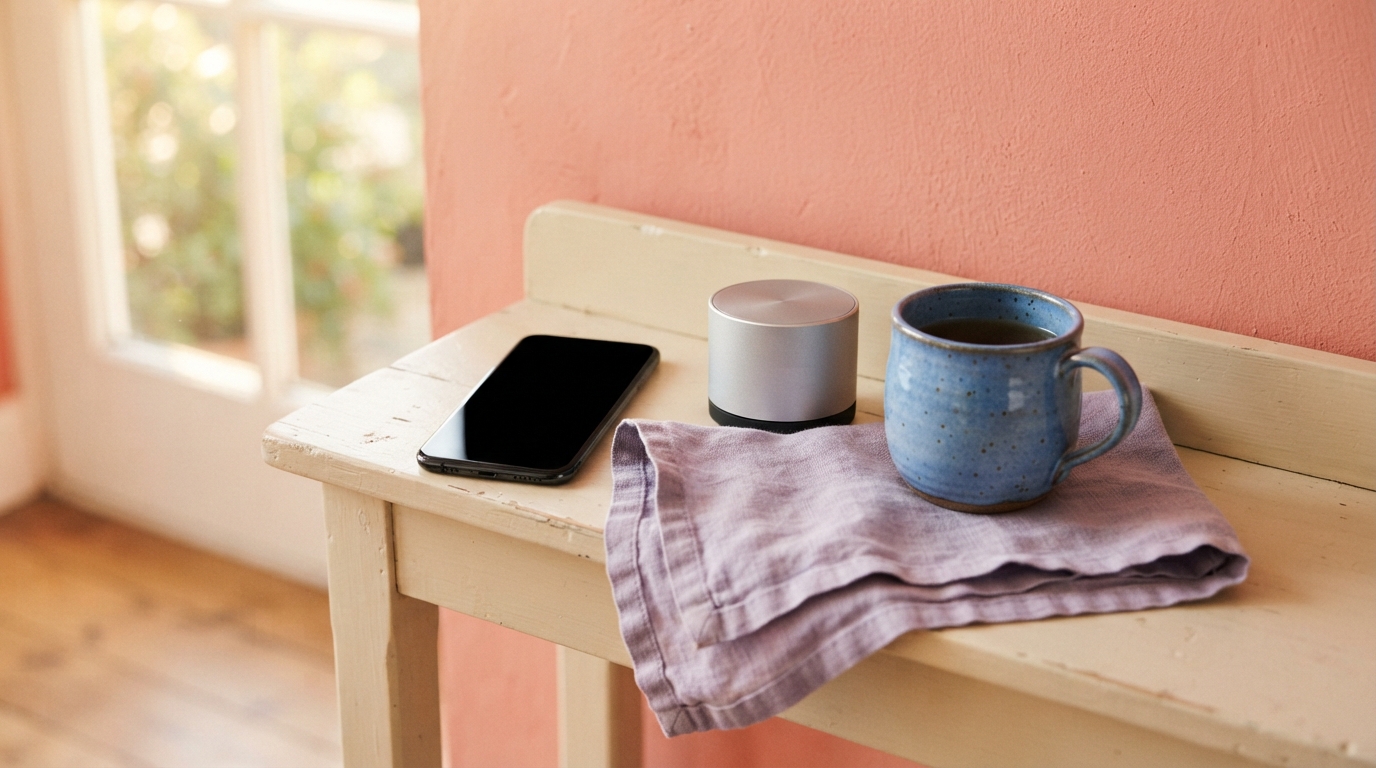
To send your own completed song on WhatsApp, choose either the dedication page link or the downloaded MP3 file. Send a link when you want the page and its context; attach the MP3 when you want the recipient to have a file they can save.
Choose a link or the actual MP3
A dedication page link opens a page for the song, rather than attaching the audio file in the chat. It can be useful when you want to share the song in its page context, but the recipient’s access and playback depend on the song’s state and their connection.
An MP3 attachment is the audio file itself. It may suit someone who wants to save the file for later listening, but it uses storage and must finish downloading or uploading. Neither option guarantees access in every situation, and a link or forwarded file can be passed on.
Path 1: Share the dedication page from My Songs
In My Songs, find the correct completed song and use Share, Copy link, or the WhatsApp sharing option. If you copy the link, paste it into the intended WhatsApp chat and confirm the recipient before sending. The copied URL opens the dedication page; it is not an MP3 attachment.
Use the dedication page link from Share. The page may show multiple versions and does not select one exact recording. A recipient may see a preview, and playback depends on the song’s state, so don’t assume the link guarantees unrestricted listening.
Path 2: Download and attach the MP3
In My Songs, choose Download for the specific version you want. The download handoff varies by device and browser, especially when you start inside an in-app browser. Find the saved .mp3 on your phone, open it, and play it to verify that it is the intended recording.
Open the recipient’s WhatsApp chat, tap the attachment control, and choose the document or file picker. Browse to the saved MP3, select it, and confirm the send. WhatsApp’s controls differ across devices and app versions; choosing the file through the picker sends the audio file rather than a pasted page link.
Check what the recipient will receive
Before sending, match the title or version to the song you intend to share. For an MP3, verify the local file plays beyond a short preview; for a link, open the page and check that it is the intended song. Then confirm the chat is the right private conversation.
If the recipient wants offline listening, ask them to save the MP3 attachment and check it opens on their device. A dedication page link and a downloaded audio file behave differently, and playback can depend on access, connection, and the song’s state.
Troubleshoot without sending the wrong thing
If a send fails, first identify what failed. For an MP3, check the connection, available storage, and whether the file is actually present in Downloads or another location shown by your device. If it is missing, repeat the download and use the browser’s download list or file manager to locate it.
If a link opens a preview or shows multiple versions, remember that the dedication page link does not select one exact recording. For a specific version, return to My Songs, choose that version’s Download button, and verify the saved MP3. If an in-app browser does not hand off the download, try the device’s browser and check its download list. Share the original page or file rather than a screen recording or short public Status clip.
Fictional example
Fictional example: sending a song to a pottery mentor
Jordan is an adult student who wants to thank Morgan, an adult pottery mentor, after their first workshop. Jordan’s first blue cup came out lopsided, but Morgan stayed patient and helped Jordan keep working until the cup was usable. Jordan has already completed a personal original song for Morgan. Before sharing, Jordan checks My Songs and selects the matching finished version. They download its MP3, play the saved file to confirm it is complete, then attach it in Morgan’s WhatsApp chat. Morgan can save the file for later listening. The example is fictional; Jordan should still verify the recipient and file before sending.
You steadied the wheel when my hands hurried on A crooked blue cup took its shape by the dawn You showed me that patience can soften the clay And small, careful turns find their own way I laughed at the rim that leaned to one side You said, “It can hold something warm inside” Now that blue cup holds more than it seems A little more courage, a room full of dreams Thank you for teaching with time and with care I’ll remember the kindness you shaped there
Listen to the example
Fictional example: sending a song to a pottery mentor · English
Fictional example
You steadied the wheel when my hands hurried on A crooked blue cup took its shape by the dawn You showed me that patience can soften the clay And small, careful turns find their own way I laughed at the rim that leaned to one side You said, “It can hold something warm inside” Now that blue cup holds more than it seems A little more courage, a room full of dreams Thank you for teaching with time and with care I’ll remember the kindness you shaped there
Frequently asked questions
Does a dedication page link contain the MP3?
No. It opens the dedication page; it is not an audio file attached to WhatsApp. To send the MP3 itself, download it and select the saved file in WhatsApp’s attachment or document picker.
Where is the downloaded song on my phone?
Check your browser’s download list or your phone’s Files or file manager app, including its Downloads folder. The location and download handoff depend on your device and browser.
Why does the link open a preview or the wrong version?
A preview may be what the dedication page displays, and playback depends on the song’s state. A dedication link may show multiple versions rather than selecting one exact recording. For a specific version, choose its Download button in My Songs and verify the saved MP3.